White Balance for Aquarium Photography: Correcting Blue and Yellow Casts
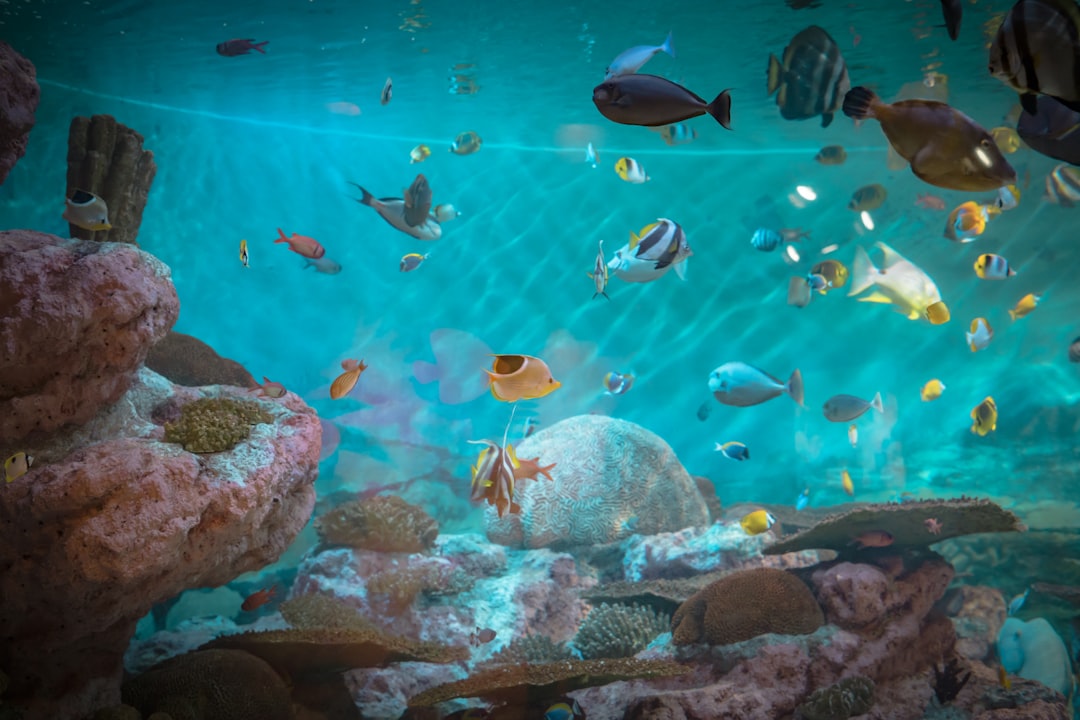
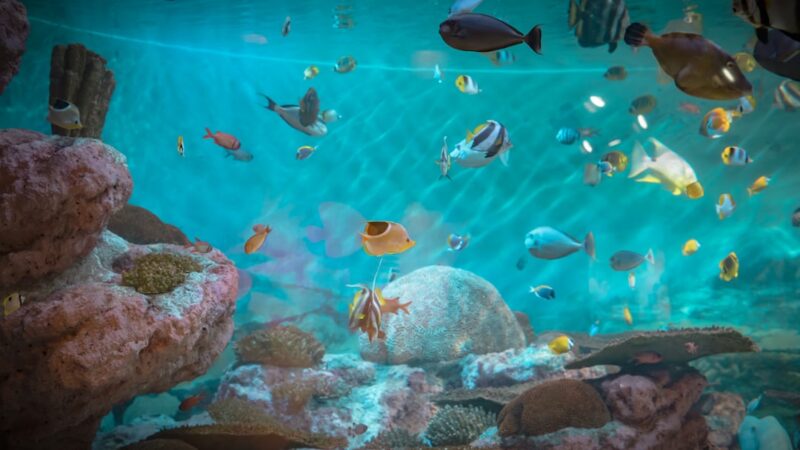
Colour accuracy separates a stunning aquarium photograph from a disappointingly tinted one, and white balance aquarium photography is the single most important setting controlling that accuracy. This guide from Gensou Aquascaping at 5 Everton Park, Singapore explains why aquarium lighting consistently fools your camera’s automatic white balance and how to correct it. Whether you shoot with a phone, DSLR or mirrorless camera, mastering white balance transforms your images from blue-tinted or yellow-washed snapshots into true-to-life representations of your tank.
Why Aquarium White Balance Is Difficult
Cameras determine white balance by analysing the colour temperature of ambient light and adjusting to make neutral tones appear genuinely neutral. Aquarium lighting, however, rarely produces a balanced spectrum. LED fixtures designed for plant growth emphasise blue and red wavelengths. Marine lights lean heavily toward actinic blue. Even full-spectrum freshwater LEDs often skew cooler than daylight. Your camera’s auto white balance algorithm struggles with these non-standard light sources, frequently producing images with a strong blue, green or yellow cast that does not match what your eyes see.
Understanding Colour Temperature
Colour temperature is measured in Kelvin. Warm light, such as candlelight at 2700K, appears orange-yellow. Cool light, such as shade or overcast sky at 7000K or above, appears blue. Most freshwater aquarium LEDs operate between 6500K and 10000K, placing them firmly in the cool range. Reef lights with actinic channels push well beyond 10000K. To counteract a blue cast, you need to set your camera’s white balance to a higher Kelvin value, telling it to add warmth. For a yellow cast under warm white LEDs, lower the Kelvin setting to cool the image down.
Setting White Balance In-Camera
Most cameras offer white balance presets: daylight, cloudy, shade, tungsten and fluorescent. None of these match typical aquarium lighting accurately, so use custom or manual white balance instead. Place a grey card or a sheet of plain white paper inside the tank, photograph it, and set that image as your custom white balance reference. This method produces the most accurate colour representation, as it accounts for the exact light hitting your specific tank. Repeat this process whenever you change your lighting setup or intensity.
On smartphones, manual or pro mode allows Kelvin adjustment. Start at 5500K and adjust upward if the image looks too blue or downward if it appears too warm. Lock the setting once you find the right value.
Correcting White Balance in Post-Processing
Shooting in RAW format gives you complete flexibility to adjust white balance after the fact without any quality loss. In Adobe Lightroom, use the eyedropper tool on a neutral grey or white area in the image, such as white sand, a filter intake or a grey rock. The software calculates the correct temperature and tint automatically. Fine-tune from there if the result does not match your visual memory of the scene. Snapseed offers a simpler warmth slider that works adequately for quick adjustments on your phone.
Dealing With Mixed Lighting
Problems intensify when multiple light sources contribute different colour temperatures. A room light on while filming adds warm ambient light that mixes with the cool tank light, creating impossible-to-correct colour gradients across the image. The solution is simple: eliminate all ambient light when shooting. Turn off room lights, close curtains and let your aquarium lighting be the sole source. This makes white balance correction straightforward because you are dealing with a single, consistent colour temperature.
Special Considerations for Reef Tanks
Reef aquarium photography presents unique white balance challenges. Heavy actinic blue lighting makes corals fluoresce beautifully to the eye but produces overwhelmingly blue photographs. Two approaches work. First, add more white channels to your LED fixture during the photo session, increasing the proportion of broad-spectrum light. Second, photograph under full blue and correct aggressively in post-processing, selectively desaturating the blue channel while preserving coral fluorescence colours. An orange lens filter placed over your camera lens physically counteracts blue light, producing more balanced results straight from the camera.
Creating Consistent Presets
Once you find white balance settings that accurately represent your tank, save them as a preset in your editing software. Apply the same preset to every image from that session. If your lighting schedule changes throughout the day, create separate presets for different intensity levels. Consistency across your photographs creates a more professional portfolio and makes progress comparisons meaningful. Sharing images with accurate colour is especially important when selling livestock online, where buyers on Carousell or local Facebook groups expect the fish or coral to look in person as it does in photographs.
Related Reading
- Aquarium Macro Photography Guide: Capturing Detail With Your Phone or DSLR
- Aquarium Photography Lighting Tips: Reducing Glare and Enhancing Colour
- Aquarium Photography Tips: Capture Stunning Shots With Phone or Camera
- How to Balance Light and CO2 in a Planted Tank
- How to Balance Macronutrients in a Planted Tank: NPK Ratio Guide